ACCESSIBILITY-The Easy way
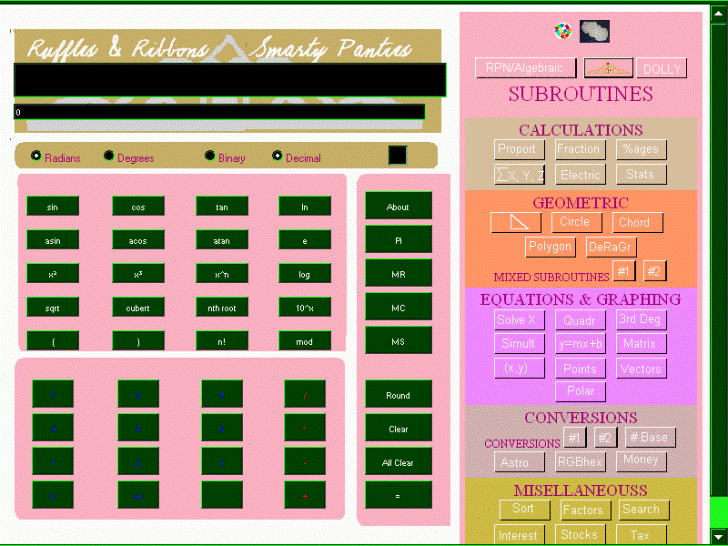
Accessibility can be such a bother in different ways for different persons. For me the glare of my tiara shining down on a white background gives me a headaches (literally). Now, you can go rummaging around in your settings and use a high-contrast w/b or b/w. but then some dialog boxes may be too big for the screen. Also you cannot use your browser to flip back into normal mode; a must if you make websties and need to see how they look to normal persons. Here is an example of my calculator in normal mode
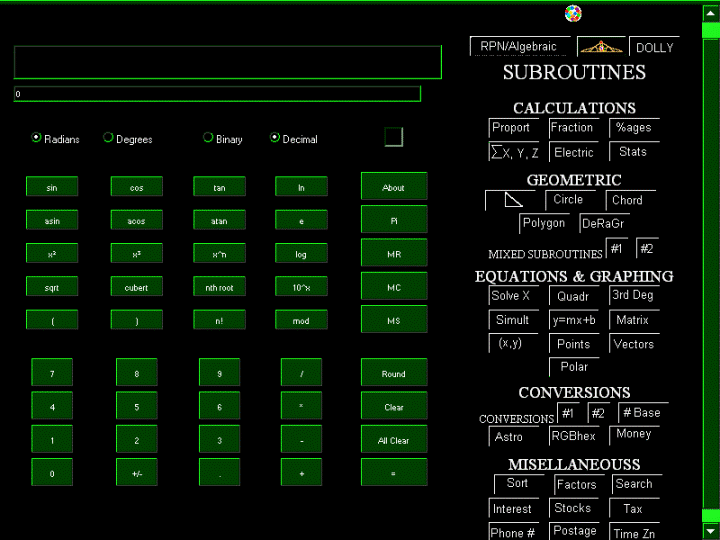
Now in high visibility mode
and for the RPN
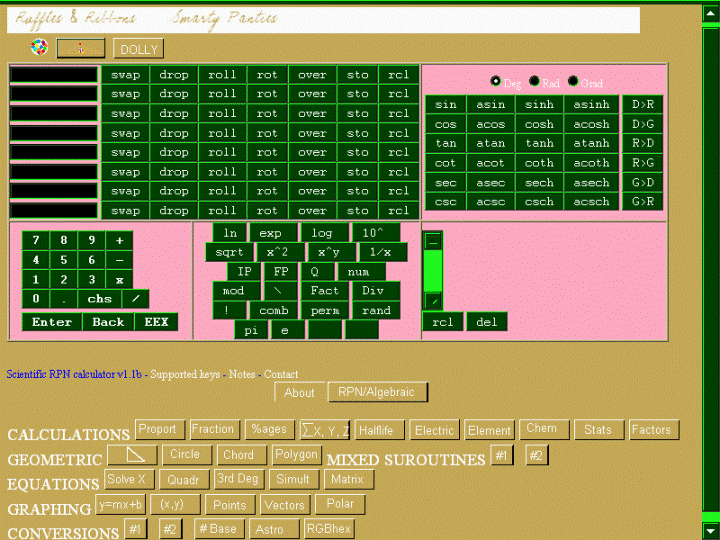
and
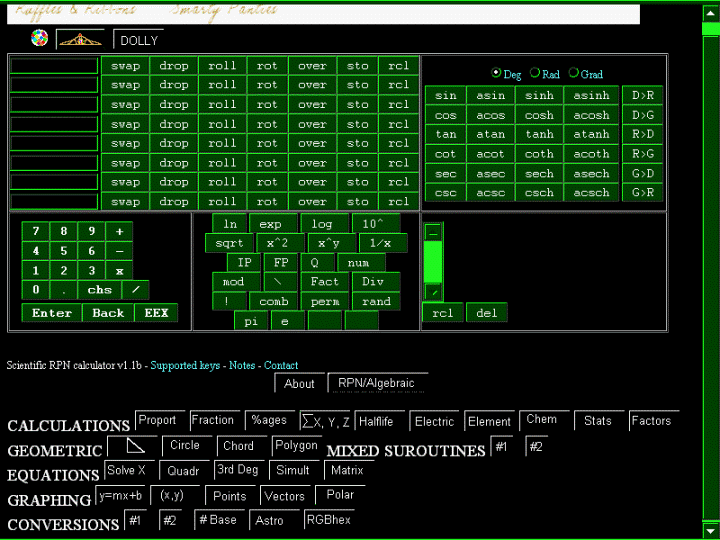
Now how do you do this without using some fancy access mode
IN FIREFOX
- Go to Tools then Options then Content. Then open the tab Colors
- Click on the color swatches. Click on each and select
- Background: black
- text: white
- link: bright green
- visited: pink
- hover: red
(or whatever colors work best for you. some high-visibility devices use blue and yellow and some offer a choice of background/foreground combinations)
- Further down you will see two things with check boxes.
- use system colors
- allow web pages to choose their own colors: This is the normal mode
- If you check either of these boxes, that is what you will get. but if you uncheck both, then the colors that you chose will be in force and any background images will be hidden. To reverse this, just check the box you want to be in force.
- Select OK and the bottom OK, and you are done. You now have a high-visibility mode that you can kick in and out without loss of functionality.
INTERNET EXPLORER
Control Panel/Internet options
Select Colors
Find each color swatch and click on it.
- Background: black
- text: white
- link: bright green
- visted: pink
- hover: red.
Or whatever works best for you
Apply and OK
Now, when you use it: Internet Options
Accessibility. You will find the "Ignore" list
check Ignore Colores...". To return to normal, unchec this line
The usual Apply, OK and you are done.
This way, if someone else uses your computer you can go in and out of a high visibility mode.
Now I don't know about you but the Windows Classic and XP thems give me a headache. So I took Windows Classic and made a desktop theme from it
open the link at the bottom of this set of instructions
unzip to My Documents
- Go to your desktop, find an empty space and right-click on it
- Select Properties
- Selec Themes click on the long box and select laser
- Click Apply then OK
- Using "Appearence" you can change the color scheme and sizes of thigns if you want. If you save as your new creations under a different name, you will have a number from which to choose
You are done.
GET IT NOW
NOTE: If you are using any High Contrast settings, except for things like the mouse, go and turn them off whereever you have them, They will prevent this setup from being fully operational. Control your text through the text size tool in your browser. It is part of the FIREFOX SUITE